

As the popularity of Single-Page-Application(SPA) rises, the need to store data locally on the client-side becomes increasingly common.
Today, we will examine 4 different methods to store data in a web browser along with basic code examples. We will also touch on an upcoming new storage API that is currently in the experimental stage.
Introduction
As web applications become increasingly complex, more sophisticated methods to store data locally on the client-side is needed to match with the capabilities of the multitude of server-side storage options available.
Storing data locally also enables offline capability in a web application that helps deliver a smoother user experience for your users even when under poor network condition.
Let's look at the different storage options available in a modern web browser.
1. Cookies
The most common purpose of storing data locally in web browsers is to retain user session. This has been faithfully served by the use of Cookies ever since the introduction of the Mosaic Netscape browser released in 1994.
To set a cookie, a server needs to return the Set-Cookie in the HTTP response headers as such:
HTTP/2.0 200 OK
Content-Type: text/html
Set-Cookie: app_session=abcde12345
Most server-side languages have specific methods to do so. For example, in PHP you could call the setcookie() method:
<?php
setcookie("app_session", "abcde12345");
// must be set before any other output
...
The cookie will then get sent back to the server that matches the domain in subsequent requests to the server.
To retrieve the cookies on the frontend, you can access them with the following JavaScript property:
document.cookie
// will return "app_session=abcde12345;"
❗️ Only cookies that are not set with the
HttpOnlyoption is accessible via code on the client-side browser.
You can also use the same property to set a cookie from the browser:
document.cookie = "session_id=abcde12345";
❗️ Please note that multiple cookies with the same name can exist for the same domain path. Your application must be able to determine which value to use.
However, a cookie can only hold a limited amount of data. In fact, you can only store up to 4096 bytes of data in a cookie. Not to mention cookies come with an expiration date, just like the Christmas cookies from last year that you are still keeping in your jar.
Cookies also get sent back to the domain server in every request, which may not be necessary for certain types of web applications.
2. localStorage
That's when localStorage comes to the picture. localStorage provides none of the limitations of a cookie stated above, while at the same time able to persist the data even when the browser was restarted.
With localStorage, you can store up to 5MB of data in Google Chrome, and they will never expire unless explicitly cleared by the user or through JavaScript code.
You may also be able to save on bandwidth as localStorage does not send its data to the server in every request.
Here's how you can store data into localStorage using JavaScript:
localStorage.setItem('product_id', 25);
You may close the browser window and the data will still persist in the localStorage.
To retrieve the data, simply run the following JavaScript code:
localStorage.getItem('product_id')
// will return "25"
All data save to localStorage will be converted into Strings. Therefore, if you want to store objects, you can use JSON to do so:
localStorage.setItem('person', JSON.stringify({ name: 'John' }));
// will be converted into strings as "{"name":"John"}"
To read the object data, just parse the returned string with JSON again:
JSON.parse(localStorage.getItem('person'))
// returns a proper Object type
You may also perform other operations to the data easily through the following methods:
localStorage.removeItem('product_id')
// remove an item by key

localStorage.clear()
// remove all data
localStorage data are bound to the current domain, protocol, and port. So, data between different domain's localStorage space will not interfere with each other.
This also means that if a user has another tab or window opened with the same domain origin, both can read the same data in the domain's localStorage. This shared property is useful in applications where you need to ensure data integrity across all active app instances.
However, if you do not want data to retain after the browser window is closed or to share data across other opened windows, you may consider using sessionStorage instead.
3. sessionStorage
sessionStorage has the same properties and methods with localStorage, but it's limited in two ways.
The first is that the data stored in sessionStorage will only survive a page refresh, but will be gone if the window is closed.
As the name implies, sessionStorage is more useful for application where data is only needed to be retained throughout the current browser session.
The second limitation of sessionStorage is that the data are only available to the current window, and it's not available to another tab or window opened even with the same domain origin.
This is useful in cases where you want your user to have a fresh session every time they load your application site.
4. IndexedDB
If you require a storage solution that is more closely resembles a database, you may consider using the IndexedDB storage.
With IndexedDB, you can store more than just strings and plain text in a much bigger storage size limit. We are talking about up to 60% of the device's available space. Therefore, storing a few hundred megabytes of data is possible.
IndexedDB even supports transaction, queries, auto-increment, and indexes, just like a database engine that is commonly used on the server-side.
With such powerful capabilities, IndexedDB is best used for building offline web applications that are typically used together with ServiceWorkers.
Let's look at some code on how to store data into IndexedDB.
i) Open a Connection
Just like a typical database, before we can insert any data, we need to open a connection to it:
// the syntax is indexedDB.open(name, version);
let openRequest = indexedDB.open('myLocalDb', 1);
Similar to other Web Storage methods mentioned earlier, the database will exist within the current origin domain, protocol, and port. But as you can guess from the code above, you can have many databases within an origin. All you need to do is open a new IndexedDB connection with a different name.
The openRequest is now an object and will emit onsuccess, onerror, and onupgradeneeded events to be listened to subsequently.
The onupgradeneeded will only be triggered if the database has not been created before, or a new version number is introduced.
ii) Create an Object Store
Next, let's create a table or collection. In IndexedDB, this is called an Object Store, which can only be created in the onupgradeneeded event handler:
openRequest.onupgradeneeded = function() {
    let db = openRequest.result;

    // the syntax is createObjectStore(name[, keyOptions]);
    db.createObjectStore('fruits', {keyPath: 'id'});
    // keyPath is the object property that IndexedDB will use as the key for query later
};
This makes sense because you don't want to keep running the object store creation script every time your application is launched.
If you want to create or modify an object store, you will have to change the version number when opening a new IndexedDB connection.
iii) Storing Data
Once our object store is available, we can now store some data into it within the onsuccess handler:
openRequest.onsuccess = function() {
    let db = openRequest.result;

    // prepare the transaction
    let transaction = db.transaction('fruits', 'readwrite');
    // 'readwrite' means we want to perform a write operation

    // prepare the object store for use
    let fruits = transaction.objectStore('fruits');

    // our data to be stored. Any data type is possible
    let banana = {
        id: 'banana',
        price: 12,
        created: new Date()
    };

    // add the data into the object store
    let request = fruits.add(banana);

    request.onsuccess = function() {
        console.log("Fruit added successfully", request.result);
    };

    request.onerror = function() {
        console.log("Error: ", request.error);
    };
};
iv) Retrieving Data
To retrieve our data, just call the get() method on the object store as such:
openRequest.onsuccess = function() {
    let db = openRequest.result;

    // prepare the transaction
    let transaction = db.transaction('fruits', 'readonly');
    // 'readonly' indicates we only want to retrieve data

    // prepare the object store for use
    let fruits = transaction.objectStore('fruits');

    // get the data by the id keyPath
    let request = fruits.get('banana');

    request.onsuccess = function() {
        console.log("Fruit: ", request.result);
    };

    request.onerror = function() {
        console.log("Error: ", request.error);
    };
};
v) Deleting Data
To remove data from the object store, we can use the delete() method:
openRequest.onsuccess = function() {
    ...
    // similar code as before
    let transaction = db.transaction('fruits', 'readwrite');
    // here we need to specify 'readwrite' because we are modifying data

    // delete data by keyPath
    fruits.delete('banana');
    ...

    // or delete ALL data in the Object Store
    fruits.clear();
};
There are many more methods and techniques in using IndexedDB. If you would like to learn more, be sure to check out the links under the Resources section at the bottom.
5. Cache API
The Cache API is a new storage mechanism that is designed for storing HTTP responses to specific requests that is also commonly used in conjunction with ServiceWorker.
According to MDN, this API is currently under experimental phase. So, it is not recommended to be used in your serious project for now.
However, as a web developer, it's always good to be aware of new tools that are available at our disposal. You may read about it further by checking out the links below.
🎁 Bonus: Viewing Local Storage Data
As a last tip, while developing your application with local storage, you can always view all the data easily from your browser DevTools.
In Chrome, just press F12 and navigate to Application tab:
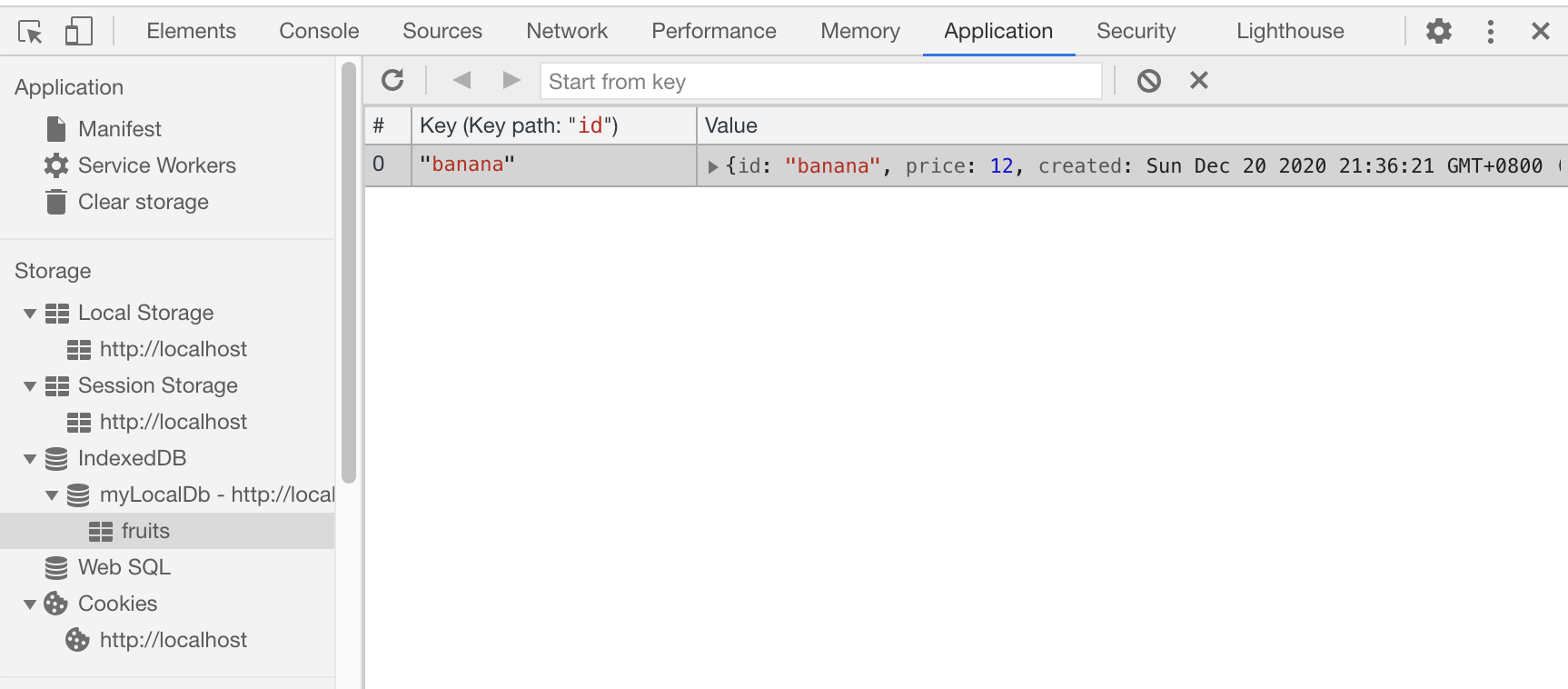
You may ignore the Web SQL data store as it is no longer under active development since 2010
From here, you can easily browse through all the data in your local store under the current domain. It is also possible to edit and remove the data manually which makes testing your application very convenient.
🏁 Summary
We have covered all the important local storage options available in most major web browsers.
Each storage methods have different traits that are useful in certain applications. You can always pick the one that best fits your requirements.
🙏 Thank you for reading! I hope you learnt as much as I did. 🚀 If you find this article useful, please share it with your followers. 🦊
📚 Resources
- 🔗 https://developer.mozilla.org/en-US/docs/Web/HTTP/Cookies
- 🔗 https://developer.mozilla.org/en-US/docs/Web/API/Web_Storage_API
- 🔗 https://developer.mozilla.org/en-US/docs/Web/API/IndexedDB_API
- 🔗 https://developer.mozilla.org/en-US/docs/Web/API/Cache
- 🔗 https://javascript.info/data-storage
- 🔗 https://web.dev/storage-for-the-web/#how-much
About the author
Hello! 👋 I'm a backend web developer residing in Malaysia! 🇲🇾
I have an extensive background in developing web & e-Commerce applications with PHP & Laravel. I'm also an AWS Certified Cloud Practitioner.
Currently, I'm learning to build iOS mobile apps with SwiftUI and studying towards becoming an AWS Certified Solutions Architect Associate!
Comments
Join the discussionNo comments yet. Be the first to comment.


